# Payment Modal Implementation
Initiating Flutterwave Payment Modal is simple using this package:
## 1. Setup Routes
```php
// The page that displays the payment form
Route::get('/', function () {
return view('welcome');
});
// The route that the button calls to initialize payment
Route::post('/pay', [FlutterwaveController::class, 'initialize'])->name('pay');
// The callback url after a payment
Route::get('/rave/callback', [FlutterwaveController::class, 'callback'])->name('callback');
```
## 2. Setup the Payment Page
A sample payment button will look like so:
> welcome.blade.php
```html
Buy Movie Tickets N500.00
```
## 3. Setup your Controller
> Setup your controller to handle the routes. I created the `FlutterwaveController`. Use the `Rave` as `Flutterwave`
> facade.
### Example
```php
'card,banktransfer',
'amount' => 500,
'email' => request()->email,
'tx_ref' => $reference,
'currency' => "NGN",
'redirect_url' => route('callback'),
'customer' => [
'email' => request()->email,
"phonenumber" => request()->phone,
"name" => request()->name
],
"customizations" => [
"title" => 'Movie Ticket',
"description" => "20th October"
]
];
$payment = Flutterwave::initializePayment($data);
if ($payment['status'] !== 'success') {
// notify something went wrong
return;
}
return redirect($payment['data']['link']);
}
/**
* Obtain Rave callback information
* @return void
*/
public function callback()
{
$transactionID = Flutterwave::getTransactionIDFromCallback();
$data = Flutterwave::verifyTransaction($transactionID);
dd($data);
// Get the transaction from your DB using the transaction reference (txref)
// Check if you have previously given value for the transaction. If you have, redirect to your successpage else, continue
// Confirm that the $data['data']['status'] is 'successful'
// Confirm that the currency on your db transaction is equal to the returned currency
// Confirm that the db transaction amount is equal to the returned amount
// Update the db transaction record (including parameters that didn't exist before the transaction is completed. for audit purpose)
// Give value for the transaction
// Update the transaction to note that you have given value for the transaction
// You can also redirect to your success page from here
}
}
```
Once the initialize is called, you get redirected to a flutterwave payment page
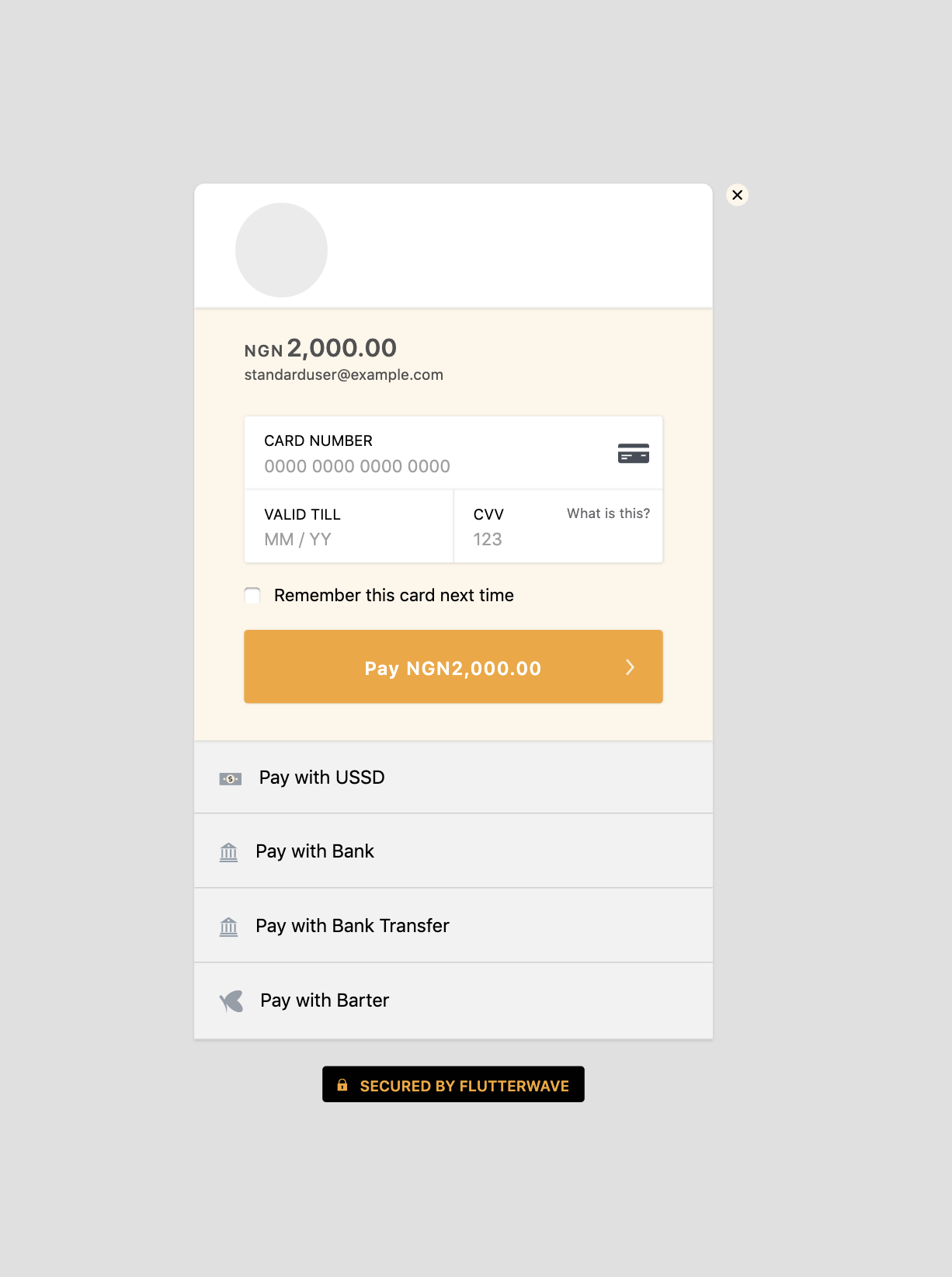
> After a successful payment, the user is redirected to the call back page
### Payment Parameters
| Parameter | Required | Description |
| --------------- | -------- | --------------------------------------------------------------------------------------------------------------------------------------------------------------------------------------------------------------------------------------------- |
| tx_ref | True | Your transaction reference. This MUST be unique for every transaction |
| amount | True | Amount to charge the customer. |
| currency | False | currency to charge in. Defaults to NGN |
| integrity_hash | False | This is a sha256 hash of your FlutterwaveCheckout values, it is used for passing secured values to the payment gateway. |
| payment_options | True | This specifies the payment options to be displayed e.g - card, mobilemoney, ussd and so on. |
| payment_plan | False | This is the payment plan ID used for Recurring billing |
| redirect_url | True | URL to redirect to when a transaction is completed. This is useful for 3DSecure payments so we can redirect your customer back to a custom page you want to show them. |
| customer | True | This is an object that can contains your customer details: e.g - 'customer': `[ 'email' => 'example@example.com', 'phonenumber' => '08012345678', 'name' => 'Takeshi Kovacs' ]` |
| subaccounts | False | This is an array of objects containing the subaccount IDs to split the payment into. Check our Split Payment page for more info |
| meta | False | This is an object that helps you include additional payment information to your request e.g `[ 'consumer_id' => 23, 'consumer_mac' => '92a3-912ba-1192a']` |
| customizations | True | This is an object that contains title, logo, and description you want to display on the modal e.g `[ 'title' => 'Pied Piper Payments' 'description' => 'Middleout isn't free. Pay the price', 'logo' => 'https://assets.piedpiper.com/logo.png' ]` |
| subaccounts | False | This is an array of objects containing the subaccount IDs to split the payment into. Check our Split Payment page for more info |
| meta | False | This is an object that helps you include additional payment information to your request e.g `[ 'consumer_id' => 23, 'consumer_mac' => '92a3-912ba-1192a' ]` |
| customizations | True | This is an object that contains title, logo, and description you want to display on the modal e.g `[ 'title' => 'Pied Piper Payments', 'description' => 'Middleout isn't free. Pay the price', 'logo' => 'https://assets.piedpiper.com/logo.png' ]` |
#### Available payment options
To use custom options for your payment modal, you need to go to your [accounts](https://dashboard.flutterwave.com/dashboard/settings/accounts) page and uncheck `Enable Dashboard Payment Options`
Here are all the possible values for payment options available on Flutterwave:
- account
- card
- banktransfer
- mpesa
- mobilemoneyrwanda
- mobilemoneyzambia
- qr
- mobilemoneyuganda
- ussd
- credit
- barter
- mobilemoneyghana
- payattitude
- mobilemoneyfranco
- paga
- 1voucher
- mobilemoneytanzania
### Alternate Confirmation
Apart from callback, you can also use Webhook to receive notifications for your transactions. Click [here](/verification/webhook.html) to set it up